
Screenshot Recall
Search every screenshot you've ever taken — by text, by meaning, by gut.
macOS 13 Ventura or later · Apple Silicon or Intel · Notarized by Apple
Search every screenshot you've ever taken — by text, by meaning, by gut.
macOS 13 Ventura or later · Apple Silicon or Intel · Notarized by Apple
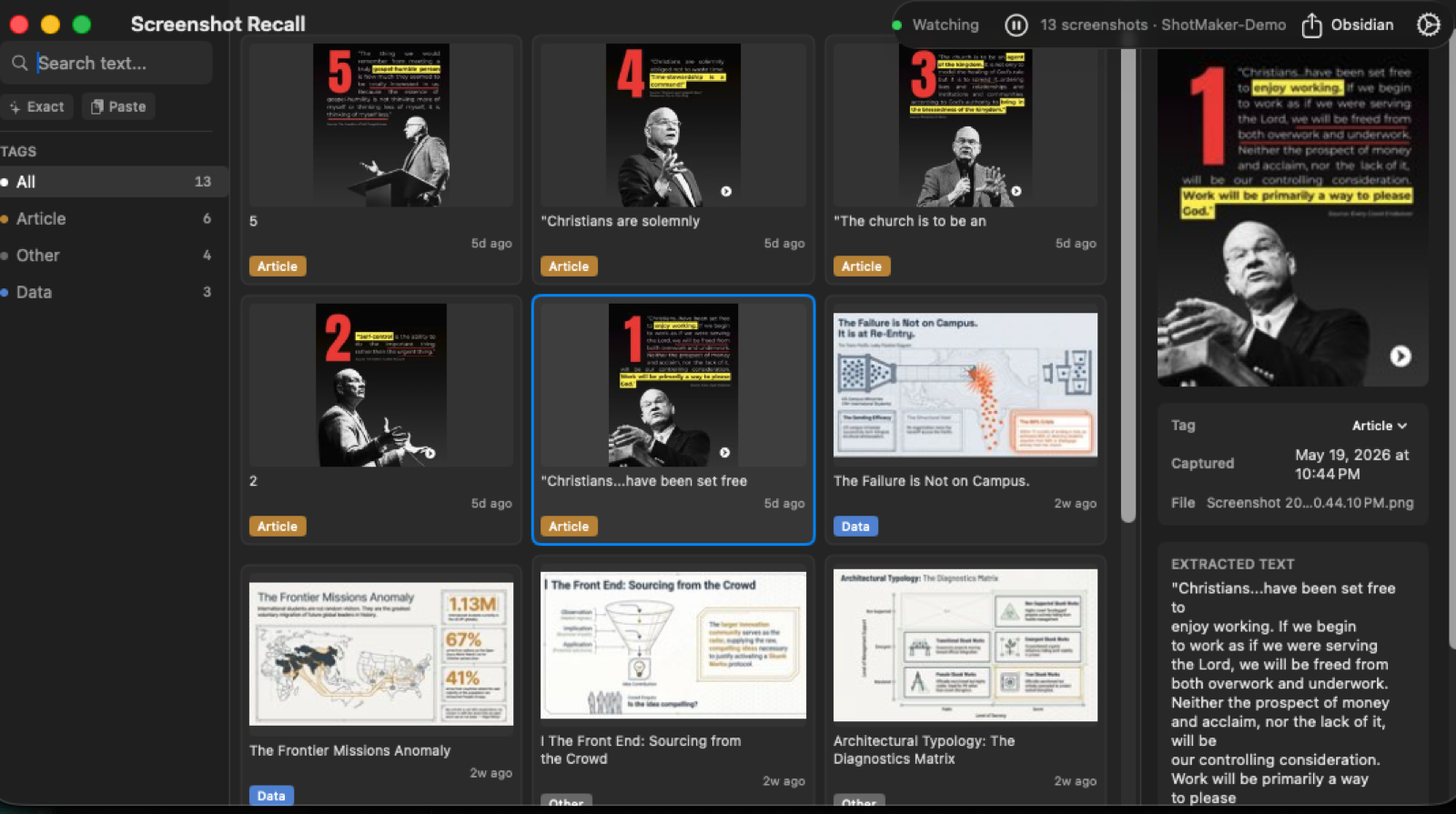
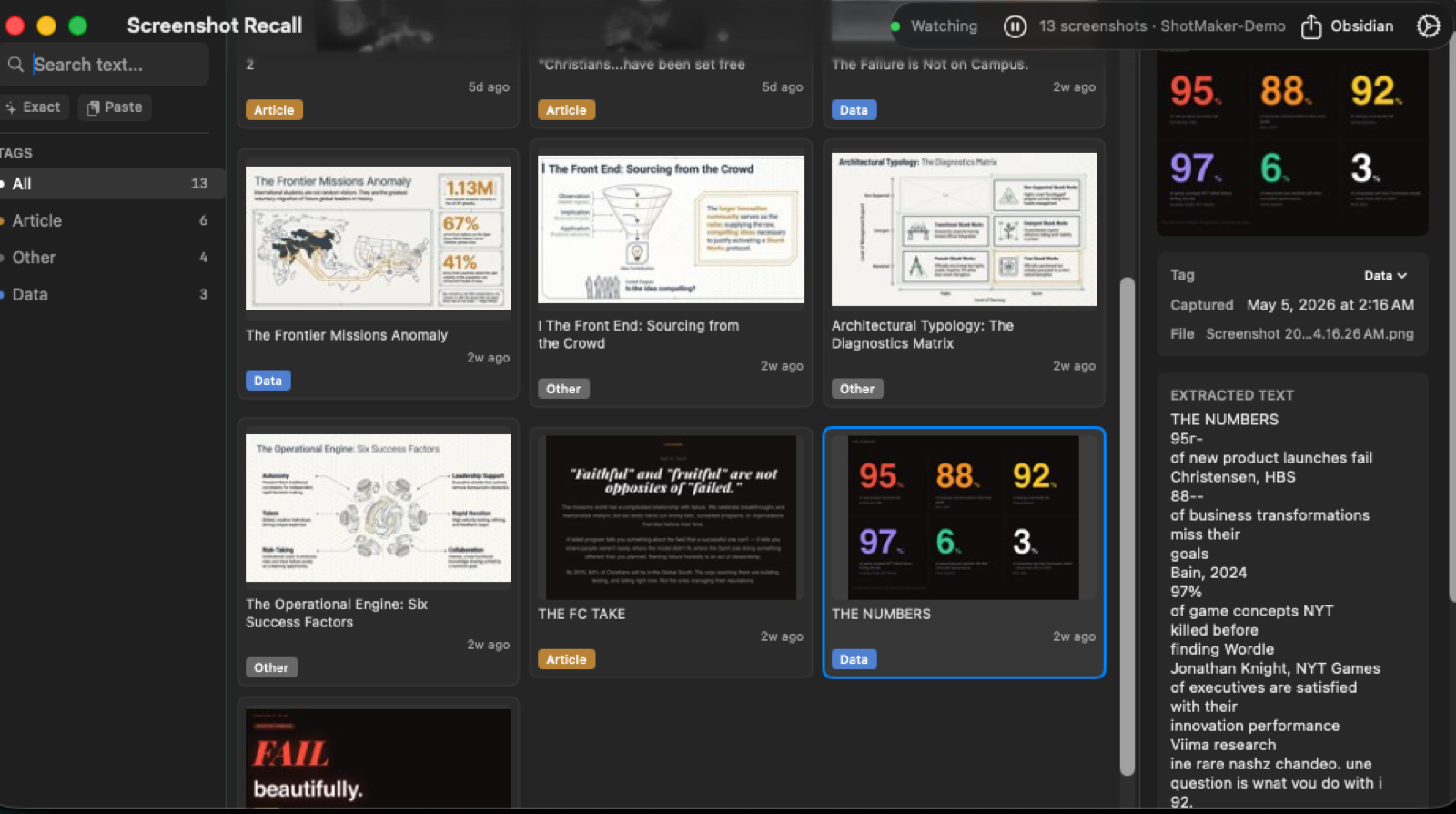
Take a screenshot. Screenshot Recall detects it within two seconds, runs Apple Vision OCR in the background, and indexes the text locally in SQLite.
Hit ⌥⌘F from anywhere and search by keyword, by phrase, or by meaning. Find the article you screenshotted three months ago by the topic, not the filename.
No cloud. No account. No network calls ever.
SQLite FTS5 indexes every word in every screenshot. Exact match, prefix, phrase queries.
On-device sentence embeddings via Apple's NLEmbedding. Find screenshots by meaning when you can't remember the exact words.
Classifies into eight buckets: code, article, conversation, receipt, notes, design, data, other. Heuristic — sometimes wrong, always editable.
⌥⌘F from any app. No accessibility permission needed.
Copy any image, paste it into Recall. Indexed alongside your real screenshots.
Drag any thumbnail out into Finder, an email, or another app. They're just files on disk.
network.client entitlementVerify with Activity Monitor → Network while the app runs. There won't be anything to see.
Honest caveat
OCR'd text is stored in a plain SQLite file at
~/Library/Application Support/ShotMaker/screenshots.db.
If you screenshot passwords, 2FA codes, or DMs, that text becomes searchable on your disk. Treat the database like a folder of your screenshots. FileVault off = readable to anyone with physical access.
/Applications.Notarized by Apple, so Gatekeeper opens it cleanly. No right-click dance.